

This also applies to cable, chain, and webbing.
Gear that is anchored includes anchors, rocks, trees, tripods, trucks, etc.
A "bight" is a simple loop in a rope that does not cross itself.
A "bend" is a knot that joins two ropes together. Bends can only be attached to the end of a rope.
A "hitch" is a type of knot that must be tied around another object.
"Descending devices" (e.g., ATCs, Brake Bar Racks, Figure 8s, Rescue 8s, etc) create friction as their primary purpose. The friction in descending devices is always considered when calculating forces.
The "Safety Factor" is the ratio between the gear's breaking strength and the maximum load applied to the gear (e.g., 5:1).
In addition to the line, ellipse, and rectangle shapes, vRigger includes polylines. A polyline is a single, continuous line made up of one or more connected segments. The line segments can be straight or curved. You can control the color of the line and the "fill" color within the polyline.
Contrary to what is stated in this video, you can drag a polyline by pressing Ctrl and dragging its filled area, provided the fill has an opacity that is greater than 0%. You can also drag a polyline by pressing Ctrl and dragging the line or any of its dots.
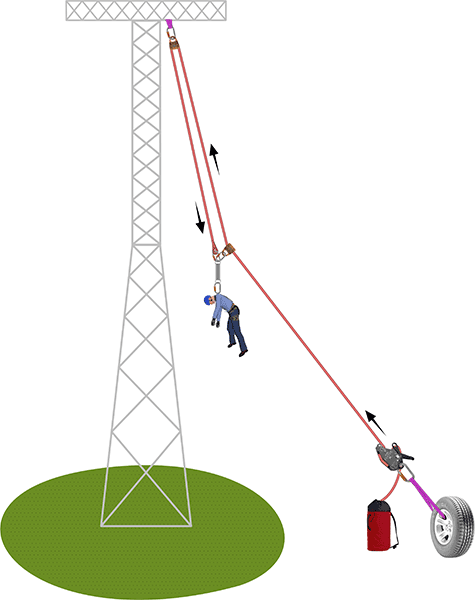
This tower and the ground below it were created using polylines. Download this sample file.
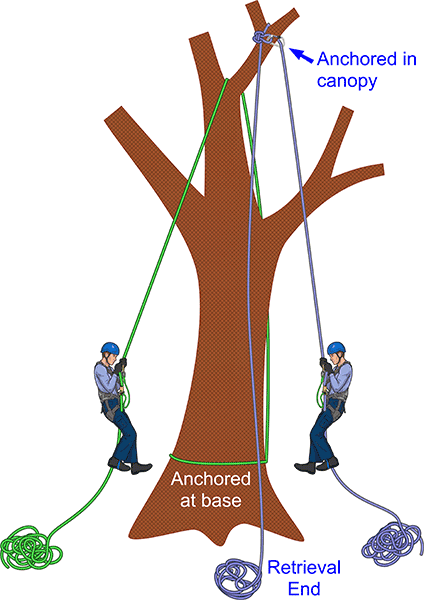
This tree was created with one polyline. Download this sample file.
Polylines are added to the workspace like any other gear, from the Gear toolbar, a Gear pane, or preferably, using the Gear Finder.
You can specify the line width, line color, fill color, fill pattern, and fill density in the Properties pane.
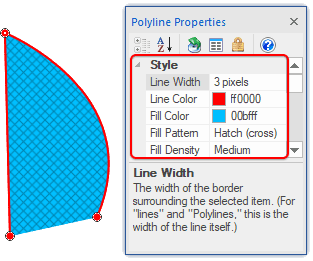
The Opacity field allows you to specify the opacity of the polyline's fill color. Set it to 0% to make the fill transparent. Learn about the opacity property.
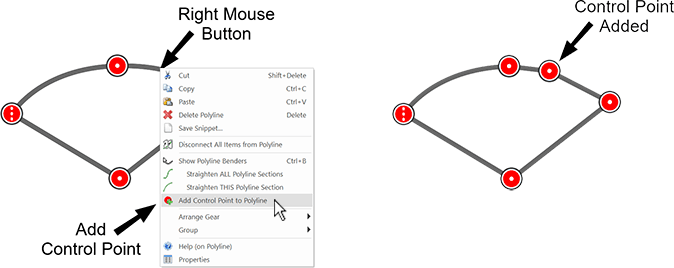
Control points allow you to route polylines by splitting a line segment into two lines. You can then drag the control point to adjust the polyline's shape.
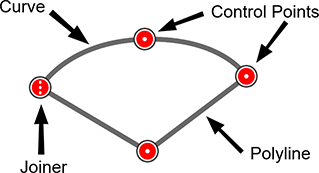
You can add a control point by clicking your right mouse button on a polyline and selecting Add Control Point from the context menu.
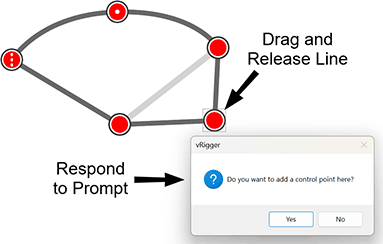
You can also add control points by dragging and dropping a segment of the polyline. When you release your mouse button, you will be asked if you want to add a control point at that location.
To create curves, select the Benders option on the View toolbar, and then drag the blue handles that appear on the polyline's dots. Learn more about bending hoses, ropes, and polylines.
To straighten a polyline, right-click on the polyline and choose Straighten Polyline Section from the polyline's shortcut menu.
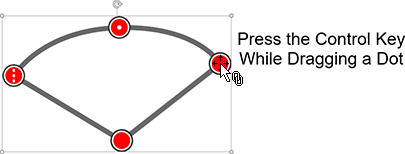
You can select a polyline and all of its control points by clicking on a polyline while pressing the Ctrl key.
You can resize a polyline by selecting it and dragging the handles that appear around the polyline.
You can move a polyline and its control points by pressing the Ctrl key and dragging the polyline or any of the polyline's dots.
Contrary to what is stated in the above video, you can drag a polyline by pressing Ctrl and dragging its filled area.
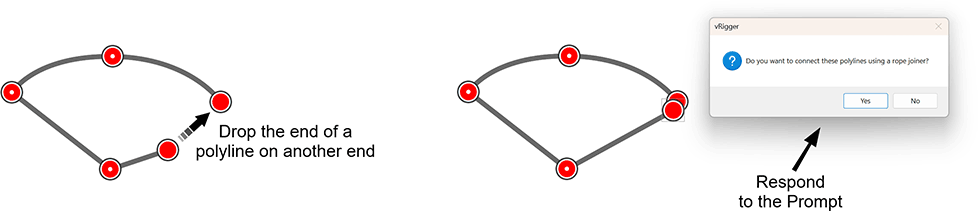
As with ropes, you can join the ends of a polyline by dropping the end of a polyline on the end of a polyline. The ends will be connected using a joiner.
You can lock a polyline by clicking on a polyline (not the fill within a polyline) or the dots on either end of a polyline and choosing Lock Item on the Home toolbar. This will lock the polyline and its control points.
Locking a polyline is helpful when you have a complex shape, like the tree shown at the top of this page, that you don't want to accidentally move or modify.
You can save a polyline as a snippet for reuse. To do so, click your right mouse button on the polyline and choose Save as Snippet.
Saving a polyline as a snippet is useful when you have a complex shape, like the tree at the top of this page, that you want to reuse in other rig files.
You can group a polyline by selecting the polyline and choosing Group from the Home toolbar or from the polyline's context menu. After grouping, the polyline and its control points will be treated as a single object.