

This also applies to cable, chain, and webbing.
Gear that is anchored includes anchors, rocks, trees, tripods, trucks, etc.
A "bight" is a simple loop in a rope that does not cross itself.
A "bend" is a knot that joins two ropes together. Bends can only be attached to the end of a rope.
A "hitch" is a type of knot that must be tied around another object.
"Descending devices" (e.g., ATCs, Brake Bar Racks, Figure 8s, Rescue 8s, etc) create friction as their primary purpose. The friction in descending devices is always considered when calculating forces.
The "Safety Factor" is the ratio between the gear's breaking strength and the maximum load applied to the gear (e.g., 5:1).
Three "shapes" are available in vRigger: a line, an ellipse (aka a circle), and a box. vRigger also includes the ability to draw abstract shapes using polylines.

Shapes are added to the workspace like any other gear, and you can select, move, and rotate shapes like other gear.
If you hold the Shift key pressed while dragging the corner of a box or ellipse, the shape will be constrained to a square or circle.
You can modify a shape's properties in the Dimensions and Style sections of the properties pane. Which properties are available will vary based on whether a line, ellipse, or box is selected.
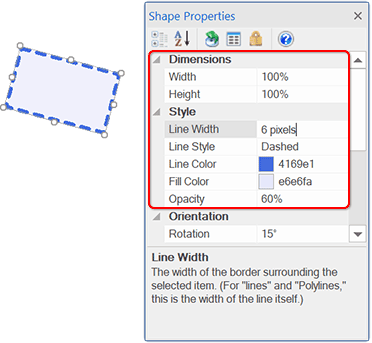
The Line Width field controls the width of the line shape and the width of the line that surrounds the box and ellipse shapes. If you don't want a line around a box or ellipse, set the Line Width to 0. The line width is based on 100% zooming (i.e., a line width of 1 pixel will be one pixel wide at 100% zooming).
The Line Color field controls the color of the lines used in boxes, ellipses, and lines.
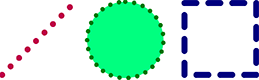
The Line Style field controls whether the line(s) are solid, dotted, or dashed.
The Arrowheads field controls whether there are arrowheads on the end of the line shape, and the Arrowhead Size field controls the relative size of the arrowheads. This property is not displayed for boxes and ellipses. (Learn more about arrows.)

The Fill Color field controls the fill color of the box and ellipse. If you want the fill to be transparent, set its opacity to 0.
The Corner Radius field is available for rectangles. It controls the roundness of the rectangle's corners.
The Opacity field allows you to specify the opacity of the shape's fill color. Set it to 0% to make the shape transparent. Learn about the opacity property.
You can use the "line" shape to create the appearance of an edge. In this illustration, a control point was used to position the rope on the line.
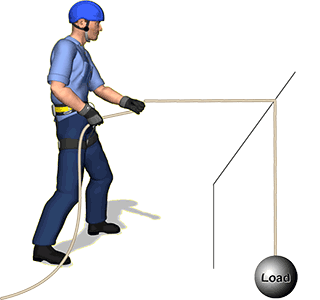
If you have a difficult time selecting a thin "line" shape with your mouse, remember that you can also select gear by pressing the Tab key, by clicking and dragging your mouse on the workspace, and by using the selection pane. You can also first zoom in on the line before clicking on it.
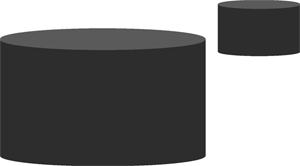
The shapes can also be used to draw other objects, such as storage tanks. These tanks were drawn using two ellipses (for the top and bottom of the tank) and a rectangle (for the front of the tank). A downloadable sample file provides more information on drawing tanks.
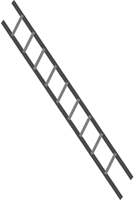
With a little artistic creativity, you can draw all sorts of objects using the shapes, including this ladder. (See the tip above if you have trouble selecting narrow lines using your mouse.)
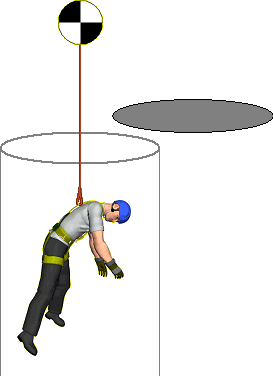
This confined space illustration was drawn using two lines and two ellipses. A downloadable sample file shows how this illustration was drawn.
The group command is helpful when working with shapes. For example, you could group the lines that comprise the ladder, or the circles that comprise the tanks, shown above. You could then easily drag, rotate, etc the grouped items.