

This also applies to cable, chain, and webbing.
Gear that is anchored includes anchors, rocks, trees, tripods, trucks, etc.
A "bight" is a simple loop in a rope that does not cross itself.
A "bend" is a knot that joins two ropes together. Bends can only be attached to the end of a rope.
A "hitch" is a type of knot that must be tied around another object.
"Descending devices" (e.g., ATCs, Brake Bar Racks, Figure 8s, Rescue 8s, etc) create friction as their primary purpose. The friction in descending devices is always considered when calculating forces.
The "Safety Factor" is the ratio between the gear's breaking strength and the maximum load applied to the gear (e.g., 5:1).
Special items, named "control points," allow you to position hoses, polylines, and ropes anywhere on the workspace. They are a powerful, and often overlooked, tool in vRigger.
Prior to version 14.0, vRigger control points were called "slack points." Some of the images and videos on this website still use the old terminology.
Beginning with version 14.0, you can add control points by right-clicking a chain, hose, polyline, rope, or webbing and selecting "Add Control Point." This is not mentioned in the video.
You add a control point by right-clicking a chain, rope, or webbing and selecting "Add Control Point," or by dragging a control point from the Gear Finder or a gear pane and dropping it on chain, rope, or webbing.
You can drag the control point anywhere on the workspace to route the rope to that location. Control points are only visible when something is selected on the workspace.
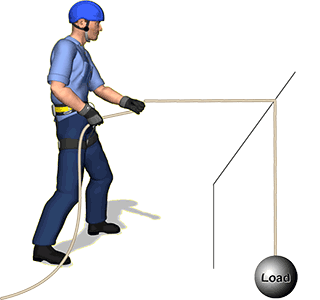
You can use a control point to show that a rope is passing over an edge as displayed in the following illustration. In this case, we used a line "shape" to draw the edge.
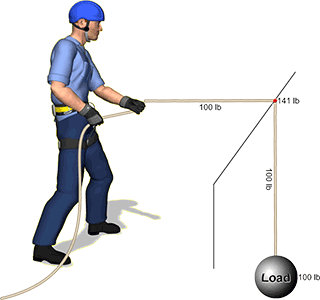
Forces can be displayed on control points by selecting the control point and then setting Show Forces in the properties pane to Always. In this illustration, you can see that there would be approximately 140 pounds of force on the edge when raising a 100-pound load.
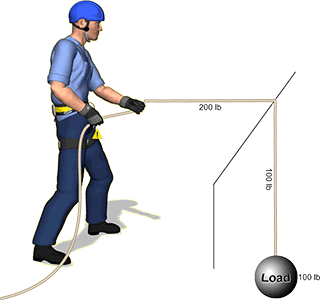
You can also set the friction of a control point so the edge's friction will be considered during force calculations. This next illustration shows how the force that is required to raise this load doubles when the friction is set to 50%.
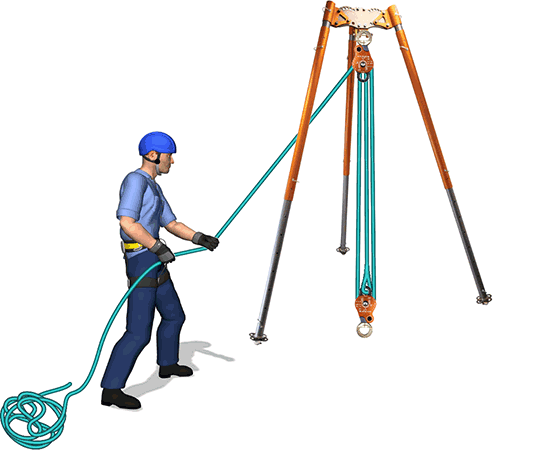
Learn how you can use control points to get ropes to route between tripod legs.
You can use control points to "create" additional rope connection points on gear. For example, four control points were used in the following illustration to create the appearance that the rope is connected to, and deflected by, the chairlift.
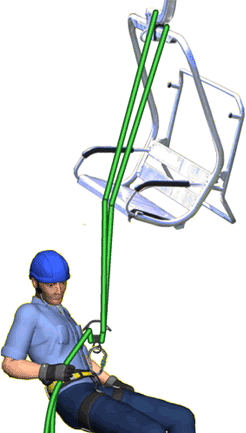
A sample file explains how the rope was routed around the chair.
Control points were used in this next illustration to "connect" the ropes to a valve. We've shown the control points in this illustration, but they will be hidden unless something is selected on the workspace.
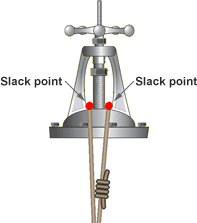
The page that explains how to insert a picture explains how you can use control points to "connect" gear to a mountain and an industrial site.
When a control point is connected to webbing, you can rotate the control point to create, or remove, twists in the webbing.
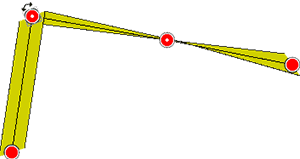
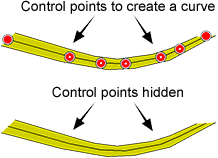
You can use multiple control points to simulate curves in chain and webbing.
Watch a video that explains how to work with control points.
Learn how joiners invisibly connect chains, hoses, polylines, ropes, and webbing.