

This also applies to cable, chain, and webbing.
Gear that is anchored includes anchors, rocks, trees, tripods, trucks, etc.
A "bight" is a simple loop in a rope that does not cross itself.
A "bend" is a knot that joins two ropes together. Bends can only be attached to the end of a rope.
A "hitch" is a type of knot that must be tied around another object.
"Descending devices" (e.g., ATCs, Brake Bar Racks, Figure 8s, Rescue 8s, etc) create friction as their primary purpose. The friction in descending devices is always considered when calculating forces.
The "Safety Factor" is the ratio between the gear's breaking strength and the maximum load applied to the gear (e.g., 5:1).
"Benders" are handles that can be displayed at the end of each hose, rope, and polyline segment. They let you bend these items to create smooth curves. Benders are not available with chain or webbing, although you can simulate curves in chain and webbing using control points.
Prior to version 14.0, benders were called "rope benders," but they now apply to hoses and polylines. Some of the images and videos on this website still use the old "rope benders" terminology.
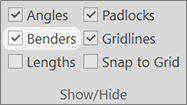
Do one of the following to show or hide the benders:
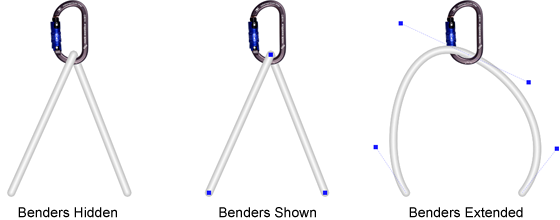
Benders are small, blue squares that are connected to the end of each hose, rope, and polyline segment. In the following illustration, there are four benders: one on each end of the rope and two at the point where the rope enters the carabiner. The two benders where the rope segments meet at the carabiner are initially displayed on top of each other.
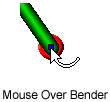
To move a bender, carefully position your mouse over the bender until the mouse pointer changes to a "bent" arrow. Then click-and-drag the bender. It may take a little practice to grab the bender, rather than the underlying object. Make sure the mouse pointer changes to a bent arrow before clicking your mouse button.
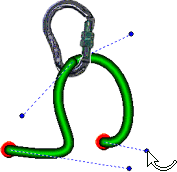
The rope will "bend" as you drag the bender. As shown in the following illustration, blue dotted lines will be drawn from the end of each rope segment to the benders.
If you press the Shift key while dragging a bender, the angle of the adjacent bender will change as you move your mouse. This smooths the curve.
If you press both the Shift and Alt keys while dragging a bender, the angle and length of the adjacent bender will change as you move your mouse.
You can combine control points and benders to make more complex shapes.
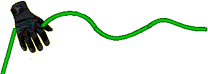
To straighten a rope that was curved using benders, right-click on the rope and choose Straighten Rope Section from the rope's shortcut menu.
If you calculate forces, curved sections of rope that are tensioned will be automatically straightened. The Float Gear on Rope command also straightens curved sections of rope. You can use the Undo command to restore the bends in the rope.
Watch a video that explains how to work with benders.
Watch a video that explains how to work with rope and webbing.
Make sure the mouse pointer changes to a "bent arrow" before clicking and dragging your mouse.
Remember that there are benders on both ends of each rope segment.
Press the Shift key while dragging a bender to smooth the curve.
Learn about control points, which can be used in conjunction with benders.