

This also applies to cable, chain, and webbing.
Gear that is anchored includes anchors, rocks, trees, tripods, trucks, etc.
A "bight" is a simple loop in a rope that does not cross itself.
A "bend" is a knot that joins two ropes together. Bends can only be attached to the end of a rope.
A "hitch" is a type of knot that must be tied around another object.
"Descending devices" (e.g., ATCs, Brake Bar Racks, Figure 8s, Rescue 8s, etc) create friction as their primary purpose. The friction in descending devices is always considered when calculating forces.
The "Safety Factor" is the ratio between the gear's breaking strength and the maximum load applied to the gear (e.g., 5:1).
This page explains how to resize the gear that is on the vRigger workspace.
Use these sizing commands to change the relative size of a few pieces of gear. Use the zoom commands to make everything bigger or smaller.
To resize an item, select it and then click and drag a sizing handle.
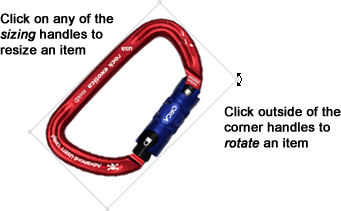
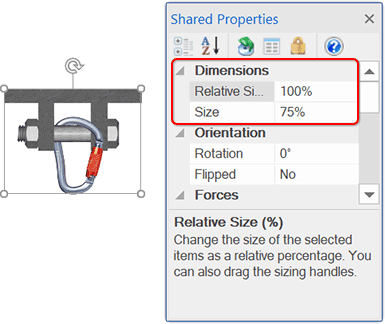
You can also change the size of gear in the Dimensions section of the properties pane.
Learn how to specify the size of rope, webbing, and hoses in mm, cm, and inches.
You can select multiple items and resize them at the same time, but remember that the sizing commands should be used to change the relative size of a few pieces of gear; you should use the zoom commands to make everything bigger or smaller.
As shown below, you can drag the corner of the selection box when multiple items are selected or after you select an item in a group.
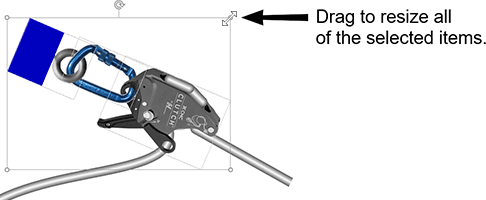
Sizing by dragging the selection box will stop when any of the selected items reach their minimum or maximum size.
When multiple items are selected, a Relative Size option appears in the Dimensions section of the properties pane. Changing this value adjusts the size of the selected items by that percentage. For example, entering 50% will reduce the size of the selected items by 50% regardless of their individual sizes.
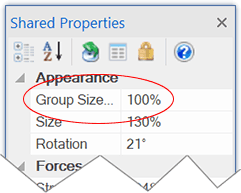
The Restore Defaults command at the top of the properties pane (and in the gear's shortcut menu) resets the size, rotation, flipping, corner radius, line style, fill pattern, opacity, reversed rope threading, and reverse connections of the selected items.
Watch a video that explains how to size items.
Resizing gear should only be used to change the relative size of a few pieces of gear. Change the zoom level if you want to make everything bigger or smaller.
If you press the Ctrl key before clicking and sizing, gear that is connected to that gear will also be resized. This is similar to rotating and dragging gear while pressing the Ctrl key.
Gear that is locked cannot be resized.