

This also applies to cable, chain, and webbing.
Gear that is anchored includes anchors, rocks, trees, tripods, trucks, etc.
A "bight" is a simple loop in a rope that does not cross itself.
A "bend" is a knot that joins two ropes together. Bends can only be attached to the end of a rope.
A "hitch" is a type of knot that must be tied around another object.
"Descending devices" (e.g., ATCs, Brake Bar Racks, Figure 8s, Rescue 8s, etc) create friction as their primary purpose. The friction in descending devices is always considered when calculating forces.
The "Safety Factor" is the ratio between the gear's breaking strength and the maximum load applied to the gear (e.g., 5:1).
The Show item as interlocked with linked gear option on the Gear Builder's Connections page controls whether gear that is connected should appear interlocked. This page provides details on that option. However, in almost all cases you should simply leave this checkbox selected.
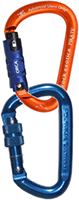
The following two carabiners are connected and drawn so they appear interlocked. That's the normal appearance and what is displayed when the Show item as interlocked with linked gear option is selected in the Gear Builder.
If this option was unselected for either carabiner, they would appear unlinked, as shown below, even when they are connected.
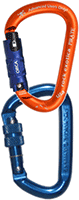
There are a few situations where you wouldn't want the gear to appear physically linked.
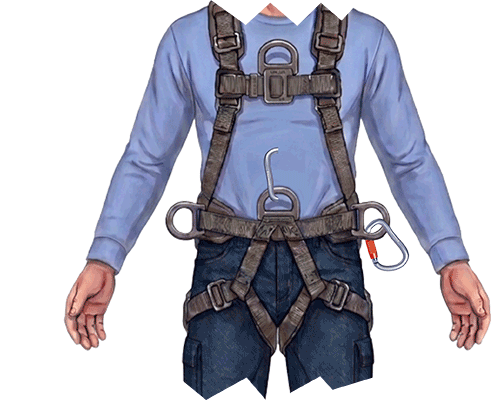
For example, if the connection point is in the middle of an item, like the D-Ring on the waist of this harness, you might unselect this option to prevent the carabiner from penetrating the rigger's abdomen as shown here. This is explained in detail on the page that explains image fragmentation.
Likewise, if vRigger attempts to draw these pulleys and rigging plate as linked, the plate's bar will penetrate the eyes on the pulleys as shown here.
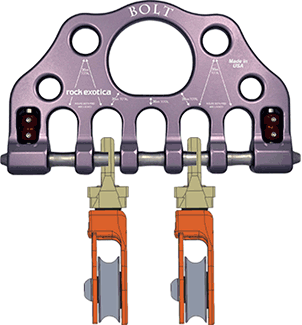
If you unselect the Show item as interlocked with linked gear option, vRigger will not attempt to draw the gear as if it is linked, as shown here.
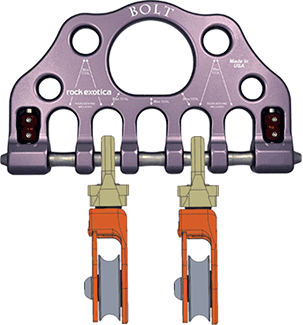
When the Show item as interlocked with linked gear option is disabled, two additional options become available.
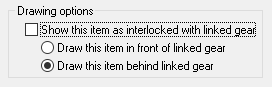
These let you specify whether you'd prefer the gear to be drawn in front of the item that it is linked to, or behind. In the case of the man, above, we chose "behind" so the man is drawn behind the carabiner. In the case of the rigging plate and pulleys, we set the pulleys to "in front," so they appear in front of the rigging plate.
Only one of the items needs to have the Show item as interlocked with linked gear option unselected. In the above examples, only the man and pulleys were configured to not display as interlocked.
Learn more about "image fragmentation."