

This also applies to cable, chain, and webbing.
Gear that is anchored includes anchors, rocks, trees, tripods, trucks, etc.
A "bight" is a simple loop in a rope that does not cross itself.
A "bend" is a knot that joins two ropes together. Bends can only be attached to the end of a rope.
A "hitch" is a type of knot that must be tied around another object.
"Descending devices" (e.g., ATCs, Brake Bar Racks, Figure 8s, Rescue 8s, etc) create friction as their primary purpose. The friction in descending devices is always considered when calculating forces.
The "Safety Factor" is the ratio between the gear's breaking strength and the maximum load applied to the gear (e.g., 5:1).
Sometimes gear in vRigger will appear to penetrate other gear. We call this "image fragmentation."
vRigger does a poor job of displaying linked gear when the gear connection is in the middle of an item, like the waist D-Ring on this harness.
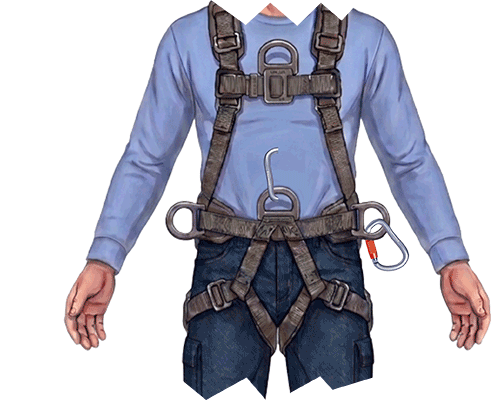
You can see the carabiner on the stabilizing D-Ring displays correctly, because it is connected to the edge of the image, but the carabiner on the waist D-Ring penetrates the rescuer's belly.
There is a setting in the Gear Builder that controls whether gear should appear interlocked. When this option is unselected, the carabiners will be drawn on top of the D-Rings, as shown below. That looks better on the waist D-Ring, but the carabiner on the stabilizing D-Ring no longer appears linked. Although imperfect, this is often an acceptable solution. Learn more about the setting that controls whether gear appears linked.
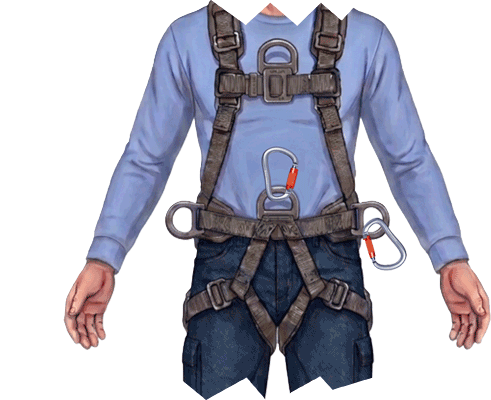
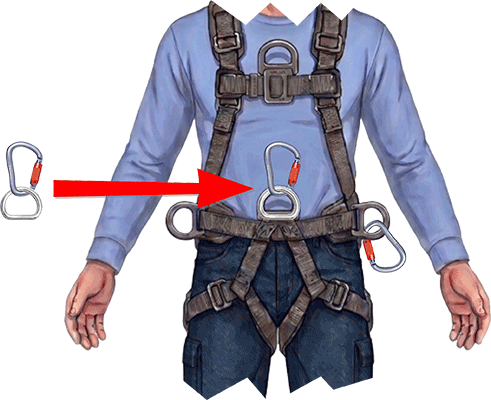
A third option, which works when connecting gear to a D-Ring (e.g., on a harness, raft, rope bag, etc), is to add a carabiner and D-Ring to the workspace, connect them, and then position them on top of the existing D-Ring, as shown here.
Changing the drawing order can also cause image fragmentation. For example, in this next illustration the hand was moved in front of the linked carabiners using the Bring to Front command. This resulted in a fragment of the linked carabiners appearing in front of the hand.
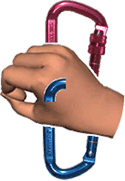
You could prevent this by selecting Auto Arrange on the Home toolbar, although that would move the hand behind the carabiners which might not be the image you are trying to create.
Another option is to unlink the two carabiners and then move them into position behind the hand using your keyboard's arrow keys (so the gear doesn't connect when you drop it using your mouse), as shown here. The viewer doesn't know that the carabiners aren't linked.
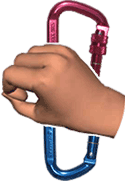
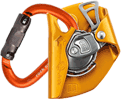
Image fragmentation can occur when the connection points on the gear are offset, which shifts the items. For example, in this next illustration, the location of the connection points caused the carabiner to be drawn too far to the right, which makes it look like the carabiner is penetrating the ASAP.
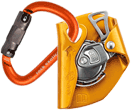
The problem shown above is caused by the rotation of the gear. The solution is complex. You can move the carabiner's connection point (on the Connections page in the Gear Builder) which will fix the problem, as shown below.
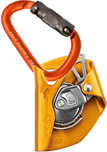
However, when the carabiner is rotated differently, the fragmentation will probably reoccur, as shown here.
If the fragmentation in the first illustration of the carabiner and ASAP is unacceptable, you could use the Edit in Gear Builder command to edit the location of the connection point on the ASAP. That edit would only affect the ASAP that is already on the workspace.
Learn more ways to deal with image fragmentation.