

This also applies to cable, chain, and webbing.
Gear that is anchored includes anchors, rocks, trees, tripods, trucks, etc.
A "bight" is a simple loop in a rope that does not cross itself.
A "bend" is a knot that joins two ropes together. Bends can only be attached to the end of a rope.
A "hitch" is a type of knot that must be tied around another object.
"Descending devices" (e.g., ATCs, Brake Bar Racks, Figure 8s, Rescue 8s, etc) create friction as their primary purpose. The friction in descending devices is always considered when calculating forces.
The "Safety Factor" is the ratio between the gear's breaking strength and the maximum load applied to the gear (e.g., 5:1).
You can use the text item to annotate your rigging illustrations.
Text is added to the workspace like any other gear, and you can select, move, and rotate text like other gear.
This video about working with text is a bit dated. vRigger now allows the resizing and rotating of text on the workspace using your mouse, and allows you to specify the text's justification.
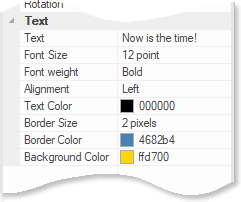
You can set the text, font size, font weight, alignment, color, rotation, and an optional border and border radius in the properties pane.
You can double-click text to display the Text Properties dialog. When editing text in this dialog, you can press Enter to break the text into multiple lines.
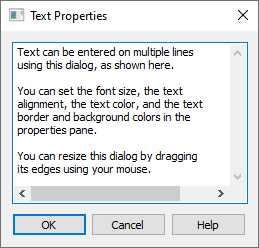
You can also click the  button in the properties pane to display the Text Properties dialog. When editing text within the properties pane, type "\n" to create a new line. For example, "this will\nappear on\nthree lines" will appear on three lines.
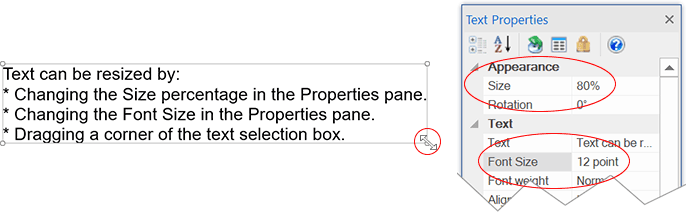
You can resize text by changing its percentage or font size in points in the Dimensions section of the properties pane, or by dragging a corner of its selection box.
You can display the Text Properties dialog by double-clicking on text that is on the workspace.
To create text with a transparent background, set the "Fill Color" to white and the "Line Width" to 0. To create a white background that blocks out items behind it, set the "Fill Color" to white and the Line Width to any value greater than 0.
The text font size is based on the 100% zoom level. If you change the zoom level, the text will appear larger or smaller than the font size you specified.
When annotating a rigging system with text, consider using an arrow to highlight a feature of the rigging system.