

This also applies to cable, chain, and webbing.
Gear that is anchored includes anchors, rocks, trees, tripods, trucks, etc.
A "bight" is a simple loop in a rope that does not cross itself.
A "bend" is a knot that joins two ropes together. Bends can only be attached to the end of a rope.
A "hitch" is a type of knot that must be tied around another object.
"Descending devices" (e.g., ATCs, Brake Bar Racks, Figure 8s, Rescue 8s, etc) create friction as their primary purpose. The friction in descending devices is always considered when calculating forces.
The "Safety Factor" is the ratio between the gear's breaking strength and the maximum load applied to the gear (e.g., 5:1).
vRigger includes several pre-built tripods, as well as the ability to build a tripod using the individual components of a Arizona Vortex tripod. Building your own adds both flexibility and complexity.
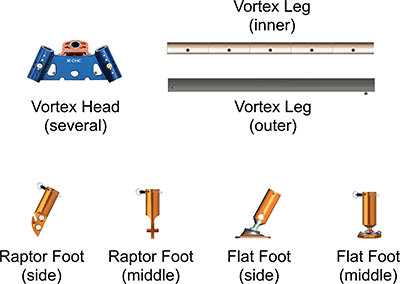
The following Vortex components are available in vRigger.
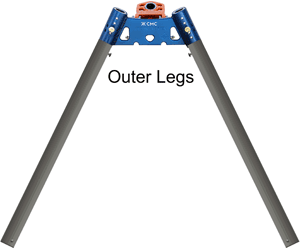
You can connect outer legs directly to the "Vortex Head (front)" as shown here:
Or you can connect inner legs to the head, and connect outer legs to them, as shown below. If you want the inner legs to extend above the head, as shown here, it looks best if you use the A-Frame head, even if you are creating a tripod.
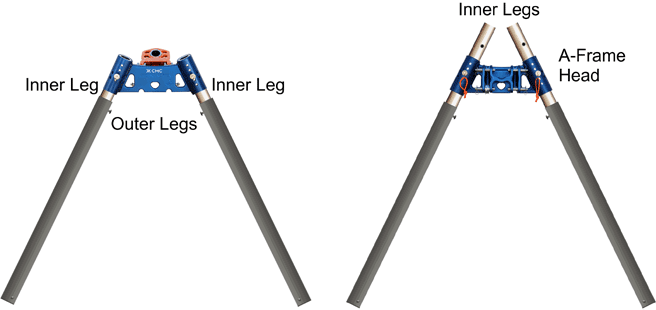
(In both of the above images, we used the Flip Gear command to flip the legs on the right side of the tripod, so the pins would mirror the pins on the other side.)
When the inner and outer legs are added to the workspace, they are tilted at 26°, which is appropriate for the legs on the left side of the Vortex when connecting to a "front" view of the head. You can select a leg and enter -26° in the properties pane to angle it for the right side of the Vortex.
Other heads are also available in vRigger. These are more freeform and in some cases, the heads are not designed to connect to the legs. These heads add flexibility in the positioning of the legs while sacrificing realism.
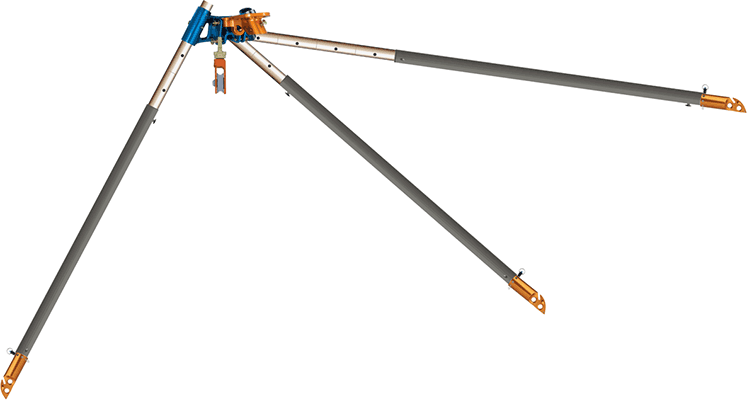
You can extend the legs by connecting additional outer legs as shown here:
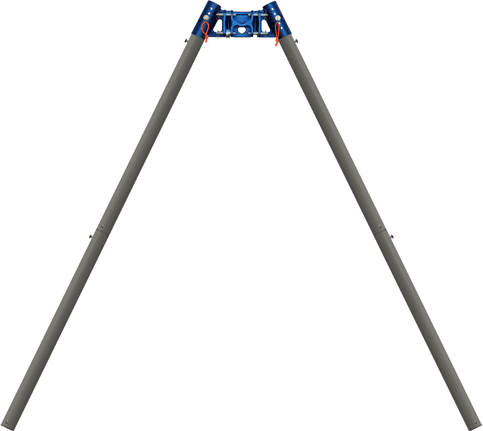
Optionally, you can select an outer leg and drag the sizing handles on the end of the leg to adjust its length:
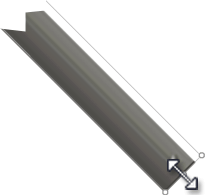
Make sure you grab the sizer on the very end of the outer leg. If you grab a corner sizer, you will resize the width as well as the length.
As with the side legs, you can connect outer legs directly to the head, or you can use an inner leg, as shown here:
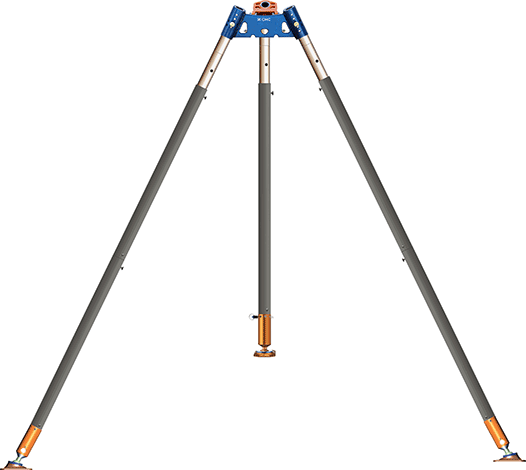
In the above illustration, we used one outer leg in the middle position and lengthened it by dragging the sizer at the end of the leg as explained above.
There are two styles of feet: raptor and flat, and there are two orientations: side and middle.
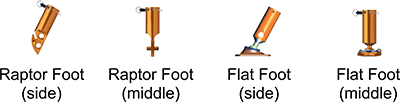
The "side" feet are angled for the left side of the Vortex. To switch a foot to the right side, click your right mouse button on a side foot and choose Flip Gear.
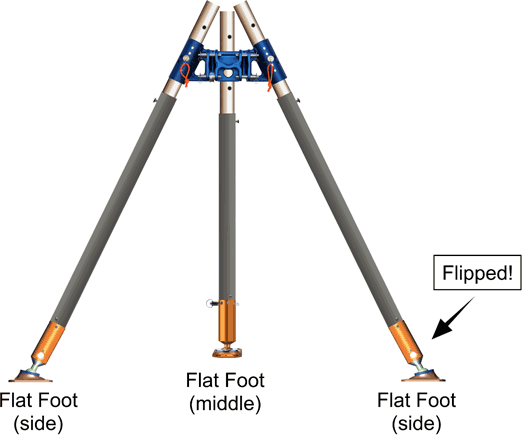
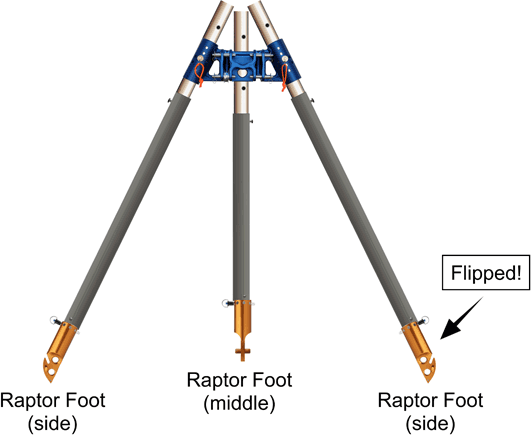
To tether the legs, drop webbing or a rope on each of the feet, and then drop the tail of the webbing or rope on its other tail (which will connect them using a joiner). Then press F9 to float the joiner on the rope.
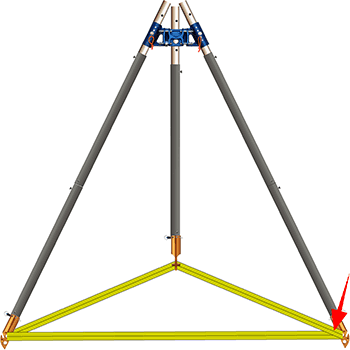
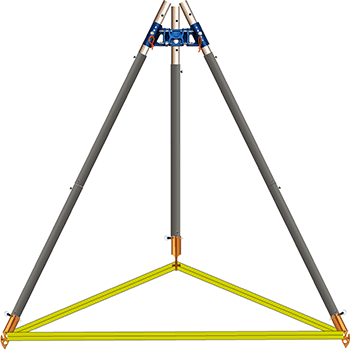
As called out by the red arrow, above, the tether nearest you will probably look lame. To resolve this, click that section of the webbing or rope with your right mouse button and choose Arrange Gear > Arrange Segments > Draw in Front of All Gear. That will correct the routing as shown below.
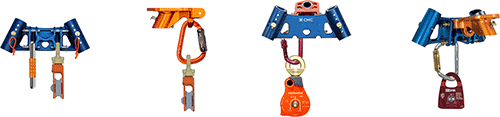
The following illustrations show a few ways to rig the head. The "Carabiner (locking, edge-view)" and "Pulley (Exotica Omni 1.5", edge-view)" shown to the left are worth considering.
Items connect in vRigger by aligning the blue connection dots. This can create challenges when connecting gear, like a Vortex leg, where numerous connection dots can overlap. If you can't get gear to connect at the locations you want, you can use the Edit in Gear Builder command to delete or move the location of individual connection points.