Gear that is anchored includes anchors, rocks, trees, tripods, trucks, etc.
A "bight" is a simple loop in a rope that does not cross itself.
A "bend" is a knot that joins two ropes together. Bends can only be attached to the end of a rope.
A "hitch" is a type of knot that must be tied around another object.
"Descending devices" (e.g., ATCs, Brake Bar Racks, Figure 8s, Rescue 8s, etc) create friction as their primary purpose. The friction in descending devices is always considered when calculating forces.
The "Safety Factor" is the ratio between the gear's breaking strength and the maximum load applied to the gear (e.g., 5:1).
Inserting Images into PowerPoint®
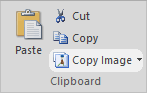
Use the Copy Image command in the Clipboard group on the Home toolbar to copy the vRigger workspace onto the clipboard. (Or press PrtSc to copy the entire vRigger window to the clipboard.)
In Microsoft PowerPoint, open the slide where you want to insert the rigging system.
Click Paste in the Clipboard group on the Home toolbar. This will paste the image that is stored on the Windows clipboard into PowerPoint. (In older versions of PowerPoint, choose Paste from the Edit menu.)
Click on the image in PowerPoint to select it.
Resize the image by dragging the sizing handles.
Optionally, you can use the Save Image command on the Home toolbar in vRigger to save the workspace as a PNG image file, and then insert that picture into PowerPoint.
Crop the Image in PowerPoint
Click the image in PowerPoint to select it.
In PowerPoint, click Crop in the Size group on the Format toolbar.
Crop the image by positioning your mouse over any of the "sizing handles" on the sides of the image, and then dragging the handle. This removes the area of the image that you do not want displayed (e.g., the toolbar, gear panes, status bar, etc).